The Project
Everything you do in GibbsStudio happens inside a project: the chemistry you
describe, the simulations you run, the results they produce and the plots and
tables you read them with. A project is one file, with the extension
.hfst, and it holds all of that together — including the results, so a
project you send to a colleague opens showing what you saw.
This chapter describes the window, the project tree and the vocabulary the rest of the manual uses. If a later page says “select the study in the Model dock and press Compute”, this is where those words are defined.
The window
The window is divided into four areas.
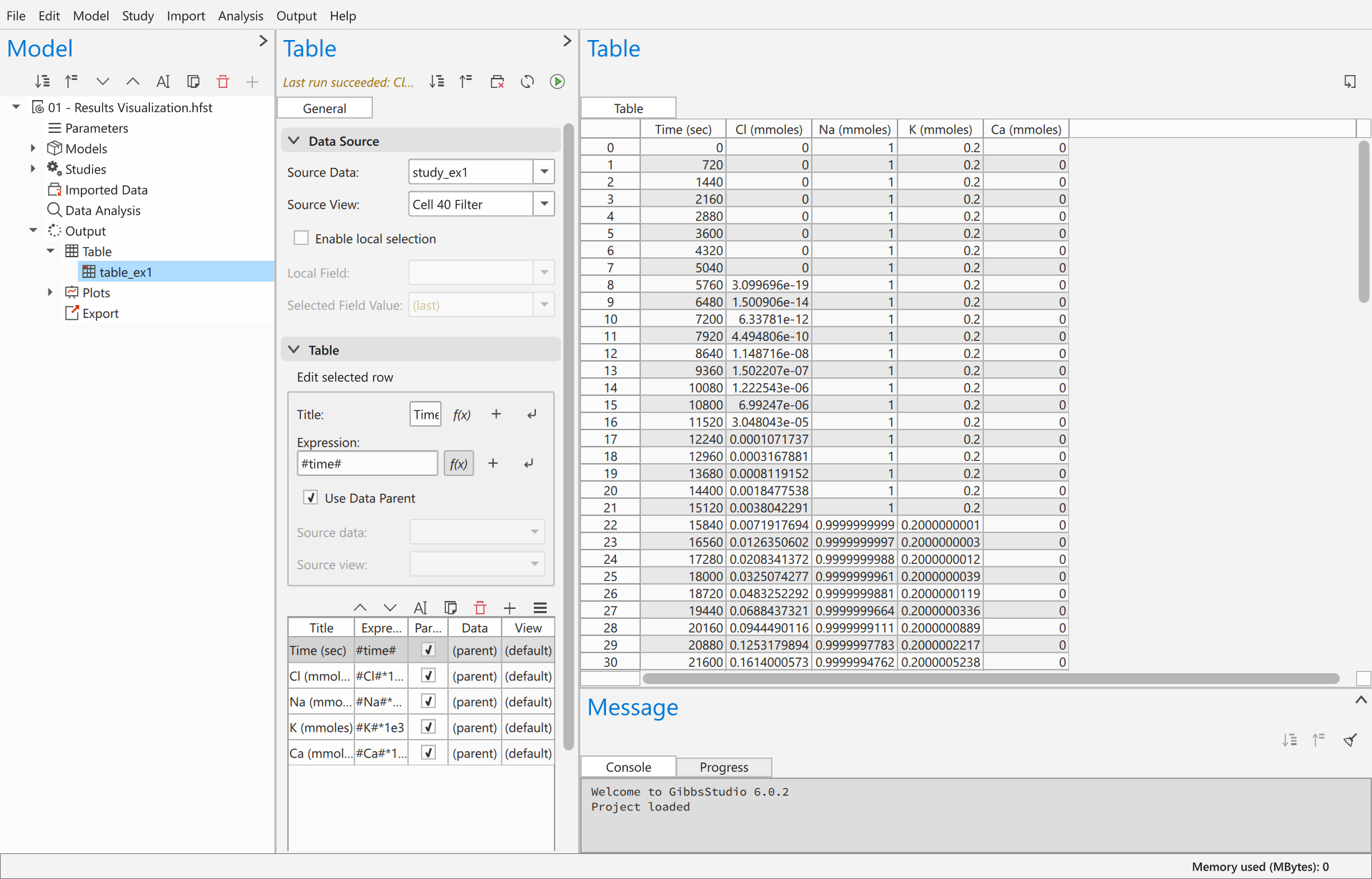
The menu bar, across the top: File, Edit, Model, Study, Import, Analysis, Output and Help. The middle entries match the branches of the project tree: what you can add to the project, you add from there.
The Model dock, on the left, holds the project tree — every entity in the project. Selecting an entity here is how you work on it; the rest of the window follows the selection.
The Form dock, in the middle, shows the selected entity’s settings. Its contents change completely with the selection: a database has a text editor, a plot has axes and series, a study has its inputs.
The Main dock, on the right, shows what the entity produces — a plot, a table, a report. An entity with nothing to show leaves it empty.
The Message dock, at the bottom right, has two tabs. Console reports what the application is doing and anything that went wrong; Progress shows a bar for each running computation.
The status bar along the bottom reports the memory the application is using.
Each dock has a small toolbar of its own, and that matters when following instructions: “the Add button in the Model dock” and “the Compute button in the Form dock” are different buttons. Where this manual names a button, it names its dock with it.
The project tree
The tree always has the same six branches under the project, whatever the project contains:
- Parameters
Named values you can use anywhere a number is expected. A parameter can be a plain number or an expression over other parameters. Parameters are what make a model parametric: a study can sweep them, fit them, or draw them from a distribution. See Parameters.
- Models
The chemistry and the mathematics being described — a PHREEQC lab with its databases and components, or a function model. This is what a simulation is run on. See Models. Earlier versions called this branch Chemistries.
- Studies
The runs. A study takes a model, does something with it — solves it once, sweeps a parameter, fits one, samples a distribution — and stores the results. See Studies.
- Imported Data
Data from outside GibbsStudio: measurements to compare a simulation against, a table from a laboratory. See Data In and Out.
- Data Analysis
Analyses that compute something from results and leave tables of their own: time series, univariate statistics, principal component analysis, and the water chemistry module’s. See Results.
- Output
What presents the results: Table, Plots and Export. See Results.
Results are also reached through Views, which hang off each study and each import rather than off the project. A view chooses the rows and columns that a table, a plot or an analysis reads, and filtering is a kind of view.
The order is deliberate and is roughly the order you work in: describe the parameters and the model, run a study, bring in data to compare with, analyse, and export.
Entities
Every node in the tree below a branch is an entity. Whatever kind it is, an entity has a name you choose, a description you can write anything into, and an id the application uses to refer to it.
What you can do with an entity depends on its kind, and the right-click menu on the tree shows only what applies:
Rename, Duplicate and Remove — almost every entity.
Compute — entities that produce something: studies, analyses, plots, and the databases that must be read before they can be used.
Clear — throws away what a computation produced, leaving the settings.
Enable / Disable — leaves the entity in the project but takes it out of what runs. Useful for setting a study aside without losing it.
Some entities are lists (Parameters, Studies) and some are groups (Components, Output). The difference is only that you add entities to a list and a group organises those it is given.
Computing
An entity that can be computed is computed from its own toolbar, from the right-click menu, or with the keyboard. While it runs, the Progress tab of the Message dock shows a bar, and anything the run has to say appears in Console.
When you change an input, whatever depended on it is marked out of date: the entity says so in its header, and Recompute is highlighted. The results you are looking at are still the old ones until you recompute — GibbsStudio does not quietly re-run a simulation because you typed in a field.
A project that is busy will not let you change it: menu entries that would alter the project are greyed out until the run finishes. Closing the application during a run stops it and quits once it has stopped.
Keyboard
The shortcuts that apply to the whole window:
Shortcut |
Action |
|---|---|
|
New project |
|
Open project |
|
Save |
|
Save project as |
|
Recompute |
In a table, Ctrl+N adds a row, Ctrl+Up and Ctrl+Down move the
selected row, Ctrl+A selects every row and Ctrl+C copies the
selection. In the tree, Ctrl+Up and Ctrl+Down move the selected
entity. In a text editor, Ctrl+F searches and Ctrl+/ comments or
uncomments the selected lines.