Installation and Updates
System Requirements
GibbsStudio runs on:
Windows 10 or later, 64-bit (x64).
macOS 14.4 or later, on Apple silicon.
A Linux version is intended. If you would like to see one released, tell us at info@gibbsstudio.io.
PHREEQC does not need to be installed separately. The version GibbsStudio was built against is inside the application, and is updated with it. Which version that is appears in Help → About….
Installing on Windows
Download the installer from https://gibbsstudio.io/download and follow it through.
The installer carries the whole application — it does not download the application while it runs, so an unreliable connection will not spoil the installation.
It is not entirely offline, though, and it is worth knowing why. The installer registers the update repository with your installation, and while installing it compares each component against the copy on the server, taking whichever version is higher. A component that is newer on the server is therefore installed instead of the one in the file you downloaded. That is usually what you want. If you need exactly the version you downloaded and nothing else, install with the machine disconnected.
If the installation gives you trouble, write to info@gibbsstudio.io with what the installer said, and we will help.
Installing on macOS
Download the disk image from https://gibbsstudio.io/download, open it, and drag GibbsStudio into Applications.
GibbsStudio for macOS is not signed with an Apple Developer ID, so macOS refuses to open it the first time. You allow it once, and it opens normally from then on.
A SHA-256 checksum is published beside the download if you want to check what you received.
Opening it the first time
Depending on your version of macOS you will see “GibbsStudio” cannot be opened because the developer cannot be verified, or Apple could not verify “GibbsStudio” is free of malware. Either way:
Drag GibbsStudio into Applications first. The steps below are unreliable while it is still inside the disk image.
Try to open it once, by double-clicking, and dismiss the warning. macOS needs that first refusal before it will offer you the exception.
Open System Settings → Privacy & Security and scroll down. There is a line saying GibbsStudio was blocked, with an Open Anyway button. Press it, and confirm.
On macOS 14 you can also Control-click the application and choose Open, which offers an Open button the plain double-click does not. Apple removed that shortcut in macOS 15, so if Control-click does not offer it, use System Settings as above.
You do this once. After that GibbsStudio opens normally, and it does not come back until you install a new version.
Note
If macOS says the application is damaged and can’t be opened, the
download was truncated or the quarantine flag confused it. Delete it, empty
the Trash, and download again. If it persists, open Terminal and run
xattr -dr com.apple.quarantine /Applications/GibbsStudio.app, then open
it again.
If none of this works, write to info@gibbsstudio.io with your macOS version and what the message said.
Licences
GibbsStudio runs without a licence, with the plugins that need one inactive. A professional licence activates them.
Open Help → Plugins…. The window lists every plugin the application knows about, down the left, with what each one does and whether it is enabled.
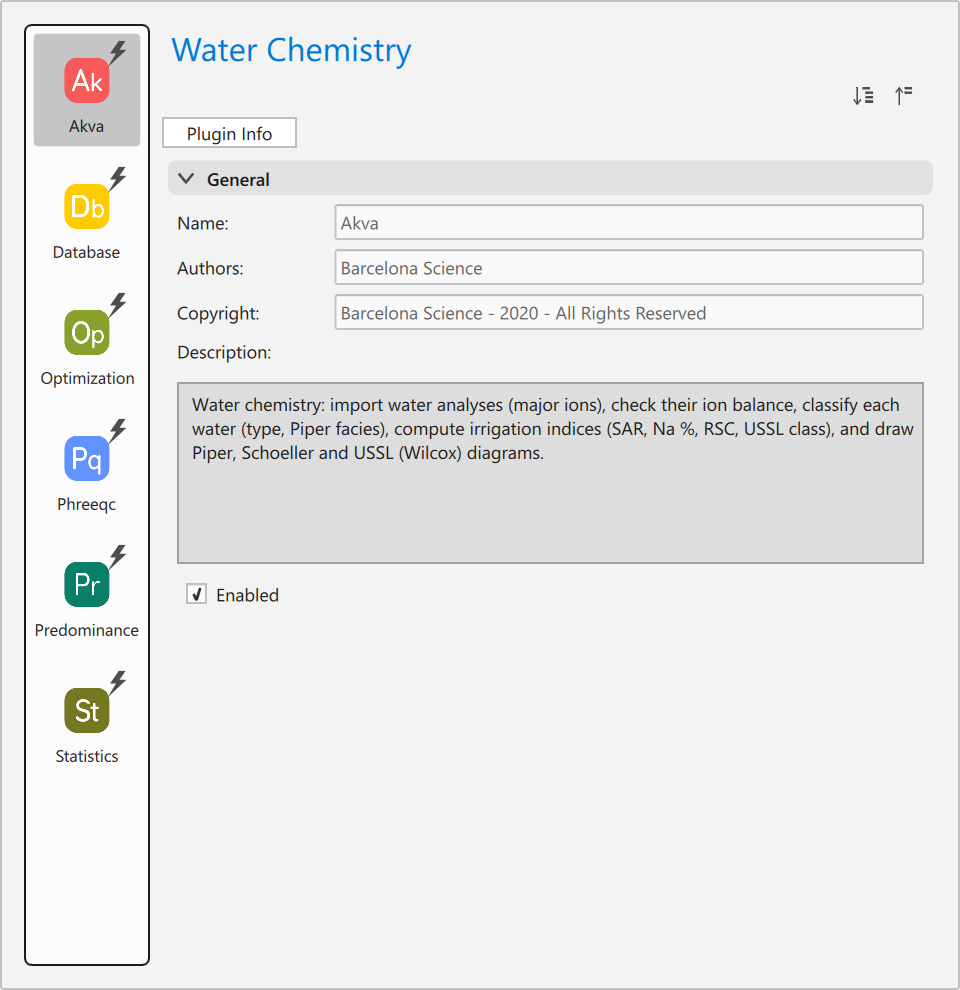
Select the plugin your licence covers. Beside Plugin Info it has a License tab; open that and apply the licence file you were sent.
Help → Upgrade to Professional… takes you to the page that sells them.
A plugin whose licence is missing or expired stays in the list and stays inactive. A project that uses it still opens; the parts belonging to that plugin are not loaded, and GibbsStudio says so in the Console.
Staying up to date
GibbsStudio checks for a newer release when it starts, and Help → Check for Updates… asks at any time. The check sends nothing about you or your work, and it can be turned off in Application Settings → Updates.
What happens when there is one is not the same on both platforms.
On Windows, GibbsStudio offers to install it. Answering yes closes GibbsStudio and hands over to the setup application.
The same thing can be done from outside the application by running Setup
from the installation directory and choosing Update Components. That is also
how a component is added or removed after installation, and how GibbsStudio is
uninstalled.
On macOS, GibbsStudio tells you which version has been released and offers to open the download page. It does not install the update for you. Download the new disk image and drag GibbsStudio into Applications, replacing the copy that is there.
Replacing it is safe. Your projects are your own files and are not touched; your licences and your settings live outside the application and survive it. You allow the new copy through Privacy & Security once, as you did the first time.
Updates stay within a product line: an installed GibbsStudio 6.0 updates to later 6.0 releases, 6.1.0 among them. It does not replace itself with a different line, and two lines can be installed side by side.